The Owner’s Side
Your website out front. Your work organized in back.
Open your private Console to answer an inquiry or check a customer’s signed work order. Send that customer a My Account link so they can check the job too.

- Included with your website
- Opens in your browser
- Made for small crews
Your private Console
Who’s booked? Who hasn’t answered?
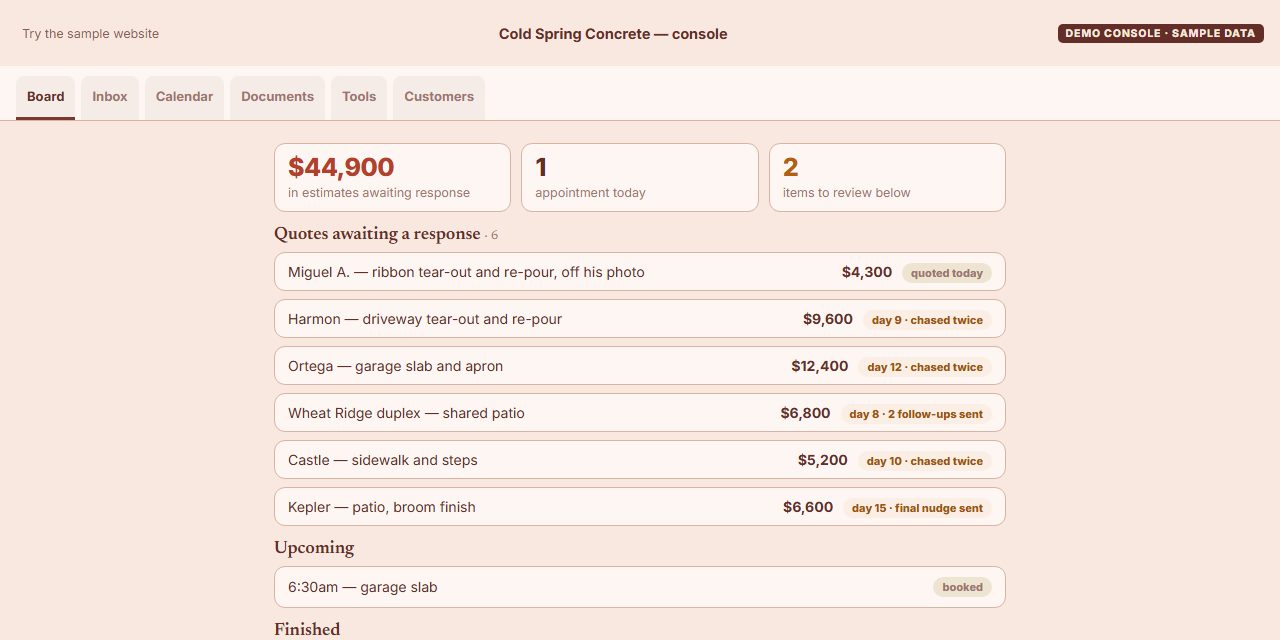
Start on the Board for today’s appointments and quotes awaiting a reply. Open a customer’s record to see what they’ve paid and what they still owe.
Explore the sample ConsoleSee how long each quote has been waiting.
Open the sample BoardSee new inquiries and conversations.
Open the sample Inbox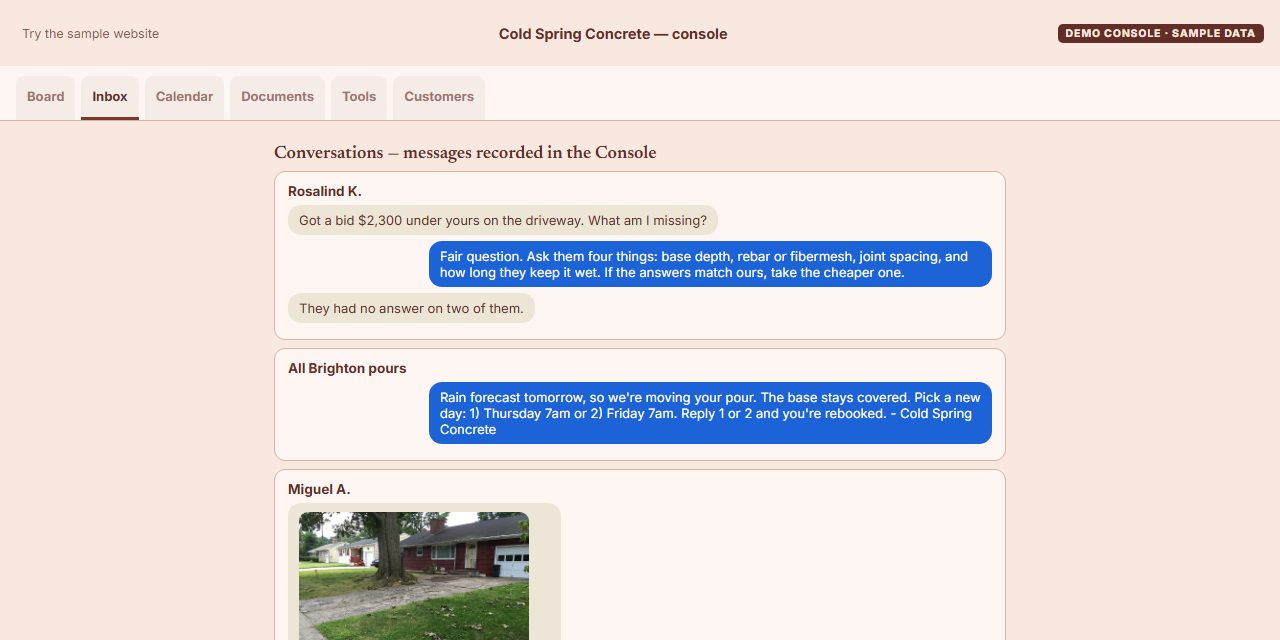
View upcoming visits and schedules.
Open the sample Calendar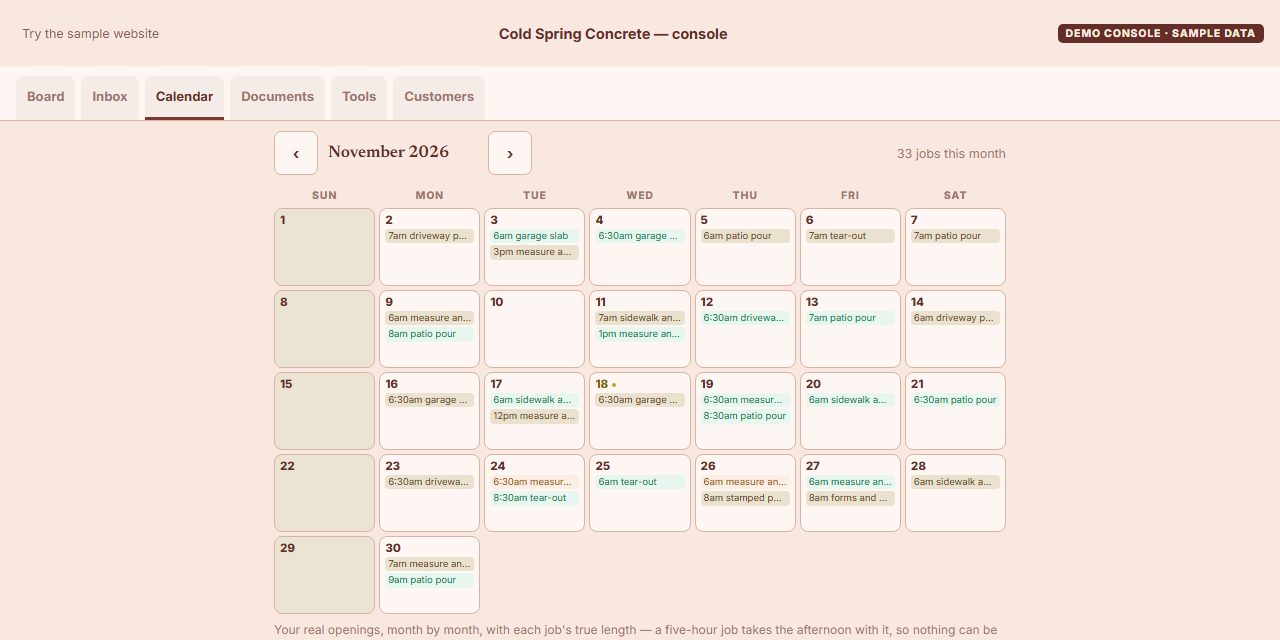
Look up a customer’s quoted price and payment history.
Open sample Customers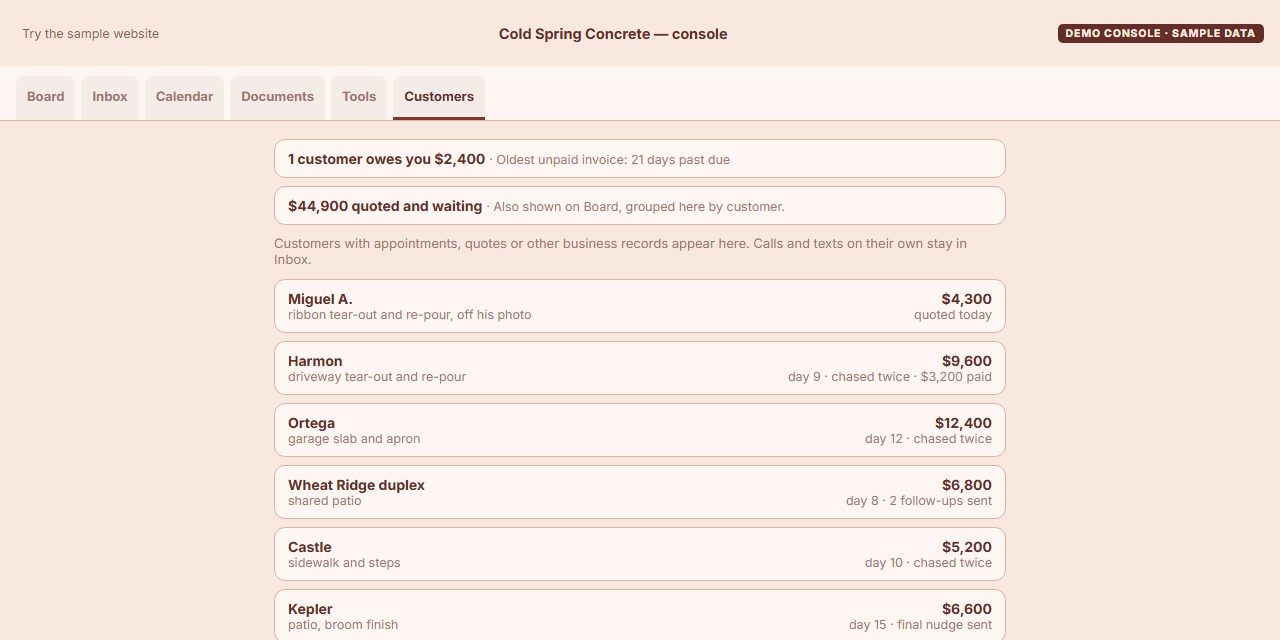
Create and store job documents.
Open sample Documents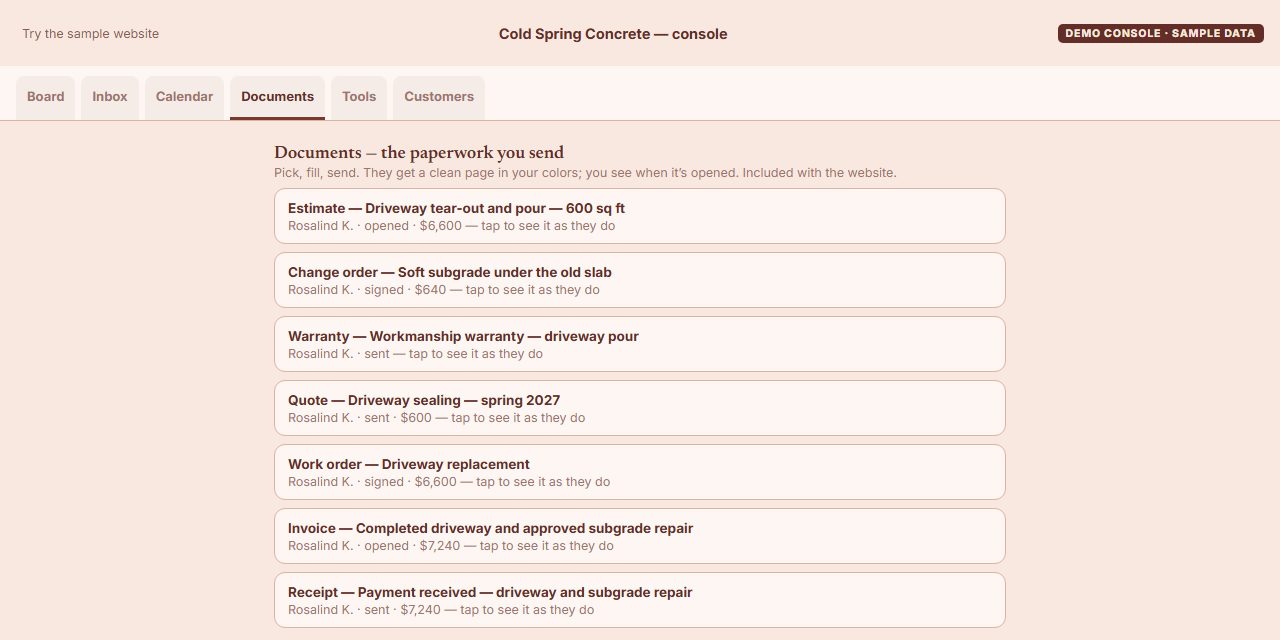
In your Console, your plan’s workflow tools draft texts such as a quote check-in or an appointment reminder. Open each draft in your phone’s texting app, check it and send it from your own number. From the day your website goes live, your Console emails each bill and its payment reminders from an address on your website’s own domain.
Job documents
Put the price and approval in writing.
Create the document in your Console and send its link. Your customer can read the work and price before signing. Keep that approval when you bill for the job.
Open sample DocumentsEstimate example
The driveway, priced after a visit.
Cold Spring looks at Rosalind’s driveway and estimates the work at $6,600. The priced work includes hauling and regrading, with written preparation and curing instructions at no charge. Rosalind later approves that scope in the work order.
Open the sample Documents tabSample total
Sample only. Nothing is sent and no agreement is made.
Open the sample Console to view the documents.
Cold Spring Concrete and Rosalind K. are fictional examples.
Creating, signing and keeping documents
Open the Documents tab in your Console and choose New document. Fill in the job, line items and notes. Review the document, then send its link by text or email.
Customers type their name to accept a quote, estimate, work order or change order. We keep that name with the time of acceptance and the document they signed. Invoices, receipts and warranties don’t ask for a signature.
Once a document is created, make a replacement to correct it. You can void an unsigned copy and stop its linked follow-ups. A signed document stays on the record; use a change order if the agreed work changes.
The customer chooses Print on the document to open their browser’s print options. They can print on paper or save a PDF where their browser supports it.
Your customer’s My Account page
Let them check the date and the balance.
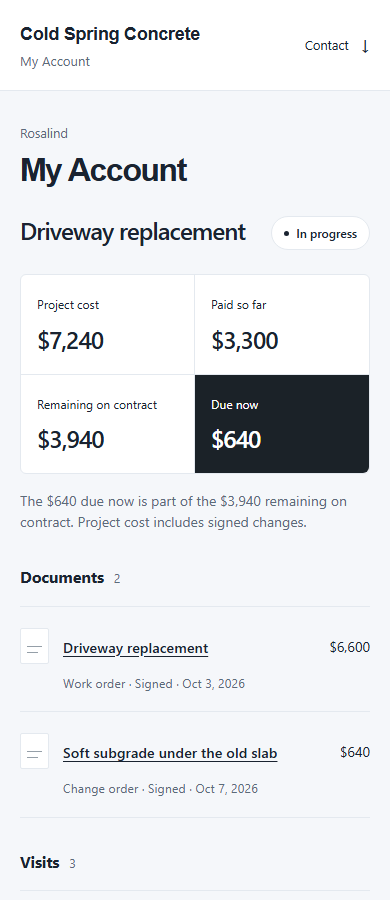
Send your customer a private link to their job on your website. They can open the signed work order or check the next visit.
Keep visit dates with the job.
Booked visits sit alongside the job’s status, such as Scheduled or In progress.
Show what’s left to pay.
Signed changes and recorded payments update the balance, so your customer can check what’s left on the contract and what’s unpaid on invoices in one place.
Choose what goes on their page.
Keep a project’s documents and photos together, choosing which ones your customer sees. Photos stay hidden until you choose to share them.

Open the full customer view
See My Account on a computer
This view shows the job after the pour. The deposit is paid, and the $640 repair invoice is due now as part of the $3,940 left on the contract. The final bill and receipt in the document examples come later.
Private links and customer access
Anyone with that customer’s link can open their page, so treat it as a private link. If it gets forwarded, replace it in your Console and earlier links stop working. You can also switch off access.
A customer can choose text, email or both on their My Account page, and you can record their choice for them. The link goes the way they chose, and every way you have on file until they choose. Email comes from your website’s domain once the site is live. The link can’t be sent to a customer who’s opted out of messages.
If a customer loses the link, they can choose “Lost my link” and enter the mobile number or email address they’ve used with your business to request another. If no link arrives, the page directs them to contact you.
Payments through your own provider
With your payment link saved, an unpaid invoice has a Pay invoice button that opens your payment page. The money goes straight to you through your own provider. Your payment provider’s processing rates still apply.
Once we connect your Stripe account to report payments back to Plainsmith, each payment is recorded against the matching invoice. The invoice is marked paid only when those payments cover its full amount; a part payment leaves the rest owed.
With other providers, or without that connection, record the amount received against the invoice in your Console: choose “Payment received”, select the invoice and press “Save payment record”. Use “Mark paid” only when the invoice has been fully paid.
Rosalind’s driveway
From the estimate to the paid receipt.
Rosalind agrees to a driveway replacement. A repair discovered during tear-out needs her signature too.
Cold Spring Concrete · a sample driveway job
- 01
Price the job
Cold Spring inspects the driveway and sends Rosalind an estimate.
- 02
Agree on the work
Rosalind accepts the work order. The crew can start the agreed work.
- 03
Record the deposit
Cold Spring invoices a $3,300 deposit and records her payment.
- 04
Approve the repair
Before pouring, the crew asks Rosalind to approve the subgrade repair.
- 05
Bill the balance
At handover, Cold Spring deducts the deposit from the job total.
- 06
Record full payment
Cold Spring issues a receipt when Rosalind finishes paying.
Ready to get started?
Your jobs and your customers, connected to your website.
Start with your business details. We build your website and help you set up the Console.


Frequently asked questions
Quick answers.
What is the Owner’s Side?
It is the part of Plainsmith that helps you organize the work behind your website: your private Console, job documents, and the customer-facing My Account page.
Is it included with my website?
Yes. Your Console and your customers’ My Account pages come with the website plan, along with job documents and workflow tools. See the website plan and provider costs.
Do I need to download an app?
No. Access your Console from a browser on your phone or computer. You can also add it to your home screen; there’s nothing to download from an app store.
Can my customers see my Console?
No. Your Console is private. Customers see only the information you choose to share through their My Account page.
Can the people who work for me use it?
Yes. On the Crew screen in your Console, you give each person their own link. A Day sheet shows them their own jobs for the day, and they can mark each one on the way or done. Console access lets them answer your customers, book and move jobs, make quotes and invoices, and see what’s been paid. An admin can also change your tools, hours and prices, record payments, and add or remove people. Their texts go out from their own phone, with their name and your business name on them. Your plan, your sign-in and your payment links stay with you, and removing someone stops their link right away.
Do customers need to create an account?
No. You send them a private link to open in their browser. There’s no app to install or password to create.
Can I create and send documents?
Yes. Choose a document type in your Console, fill in the job and send its link. Customers can sign the ones that ask for approval. Explore the seven examples.
Can customers pay through their My Account page?
With your payment link saved, an unpaid invoice has a Pay invoice button that opens your payment page. The money goes straight to you through your own provider.
What happens after the job or the website plan ends?
Finishing a job doesn’t switch off the link while your website plan is active. If you buy out your website to keep its files, My Account keeps the records as they stood when the plan ended, without later updates. Buying the files doesn’t include permanent storage of hosted customer records; our terms explain the buyout and storage conditions. Canceling the site without a buyout ends customer access.